Gaming Blog
How to Download and Install ETS2 Mods Safely

How to download and install ETS2 mods safely is an essential skill for every Euro Truck Simulator 2 player. Mods allow you to customize your game, add new vehicles, unlock maps, and improve realism. However, incorrect installation often leads to crashes or broken saves.
This guide explains the complete process of installing ETS2 mods correctly. It works for both old and new game versions and is written for players with no technical background. By following these steps, you can enjoy a stable and fully modded ETS2 experience.
What Are Euro Truck Simulator 2 Mods?
Euro Truck Simulator 2 mods are custom files created by the community to extend or enhance the base game. These mods can add new vehicles, improve visuals, or change gameplay mechanics.
For example, some mods let you drive cars, buses, or custom trailers. Others enhance graphics, weather effects, traffic behavior, or engine sounds. As a result, mods keep ETS2 exciting even after hundreds of hours of gameplay.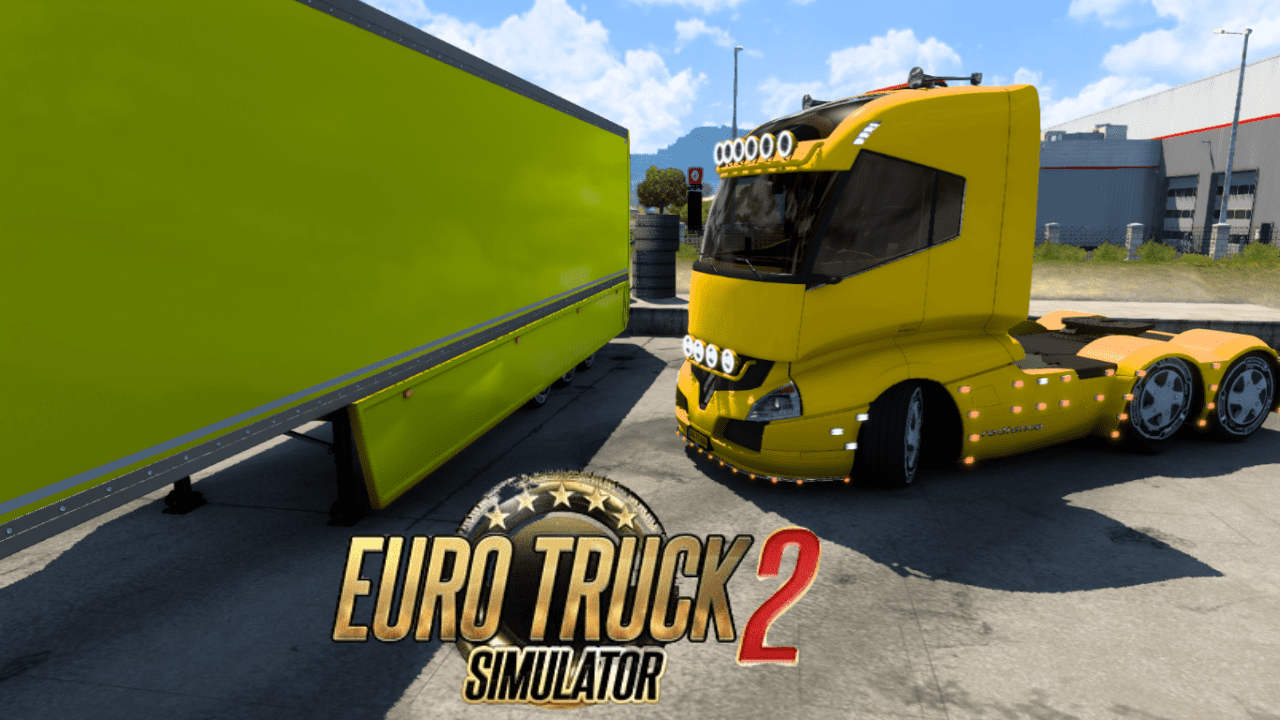
Because mods interact directly with the game, installing them correctly is very important.
Step 1: Check Your Euro Truck Simulator 2 Version
Before downloading any mod, you must confirm your game version. This step prevents compatibility issues.
Launch Euro Truck Simulator 2 and remain on the main menu. The version number is displayed clearly on the screen. Write it down and keep it for reference.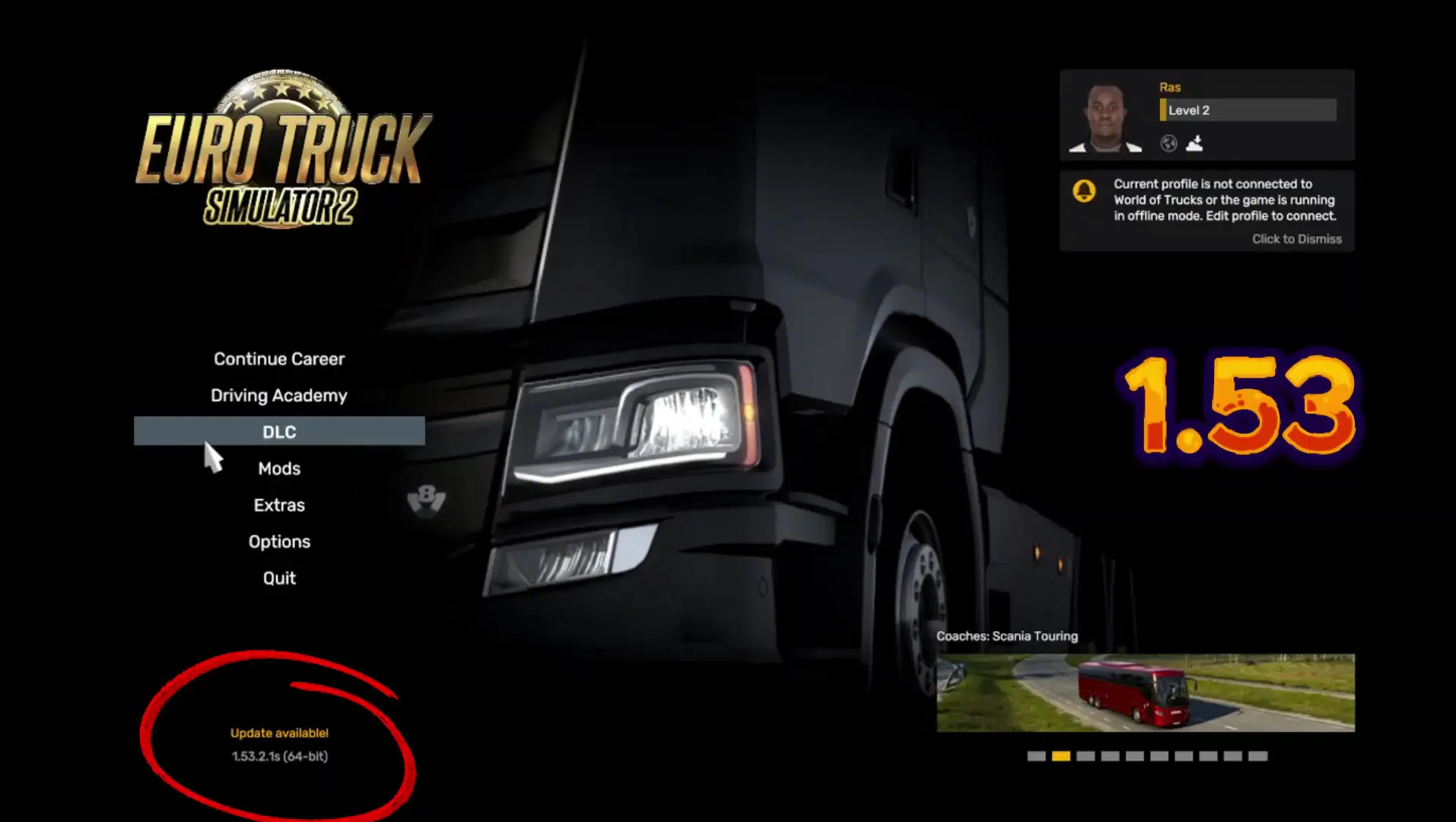
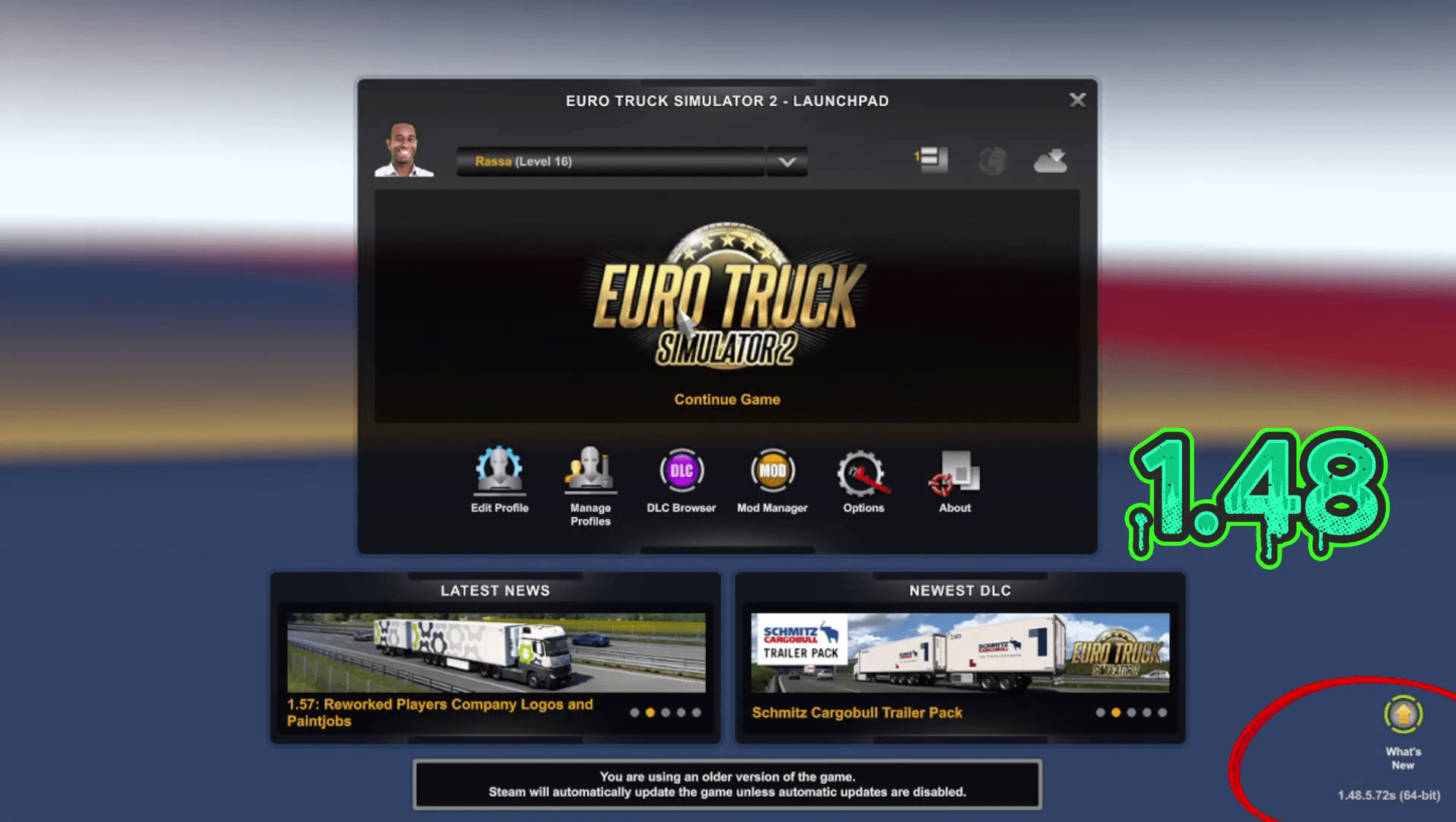
Every ETS2 mod is built for specific versions. Therefore, installing the correct version ensures stability and prevents crashes.
Step 2: Use Trusted ETS2 Mod Websites
Next, open your browser and search for reputable ETS2 mod websites. Not all mod sites are reliable, and unsafe downloads can harm your game or system.
Trusted websites clearly show supported game versions, mod descriptions, screenshots, and update dates. Avoid websites filled with aggressive pop-ups or misleading download buttons.
You can also find official information about modding support on the SCS Software website at scssoft.com.
Step 3: Choose Mods Compatible With Your Game Version
Once you are on a mod website, browse for mods that match your ETS2 version exactly.
You can install many types of mods, including cars, buses, trailers, maps, and sound packs. However, always read the mod description carefully. If the version does not match your game, do not download the file.
This single habit prevents most ETS2 modding problems.
Step 4: Download the Correct ETS2 Mod File Format
When downloading a mod, always check the file format.
The recommended file type is .scs. This format works immediately and does not require extraction.
If a mod downloads as a .zip or .7z file, it must be extracted first. For beginners, using .scs files saves time and reduces installation errors.
Step 5: Install ETS2 Mods in the Correct Folder
After downloading the mod file, installation is simple.
Open your Downloads folder and locate the .scs file. Copy or cut it. Then go to Documents, open the Euro Truck Simulator 2 folder, and select the mod folder. Paste the file inside.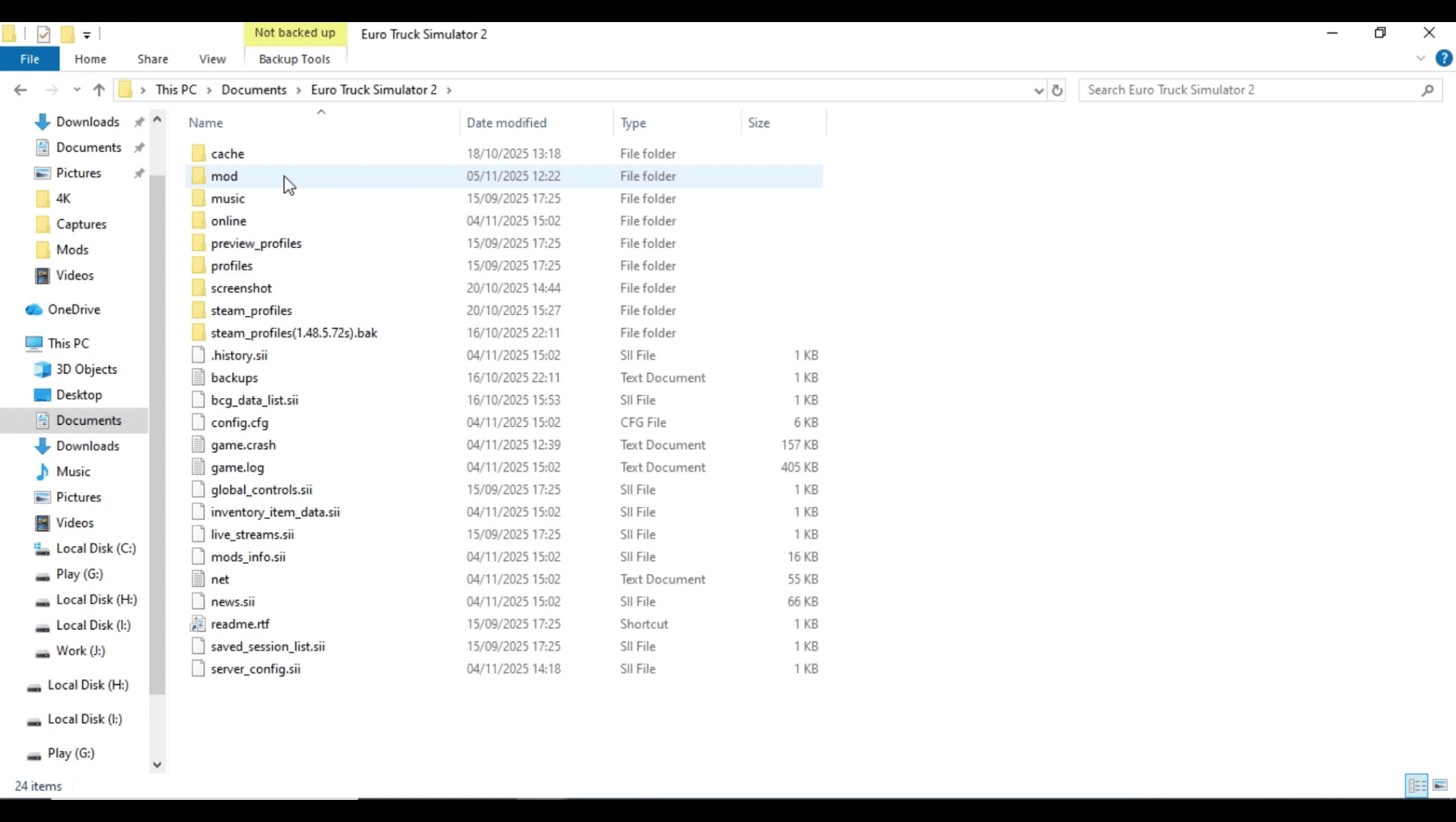
Euro Truck Simulator 2 only detects mods placed in this folder. Placing files elsewhere will not work.
Step 6: Activate Mods Using Mod Manager
Installing the mod file alone is not enough. You must activate it inside the game.
Launch Euro Truck Simulator 2, select your profile, and open Mod Manager. Locate the newly added mod and activate it. Confirm your changes and load your profile.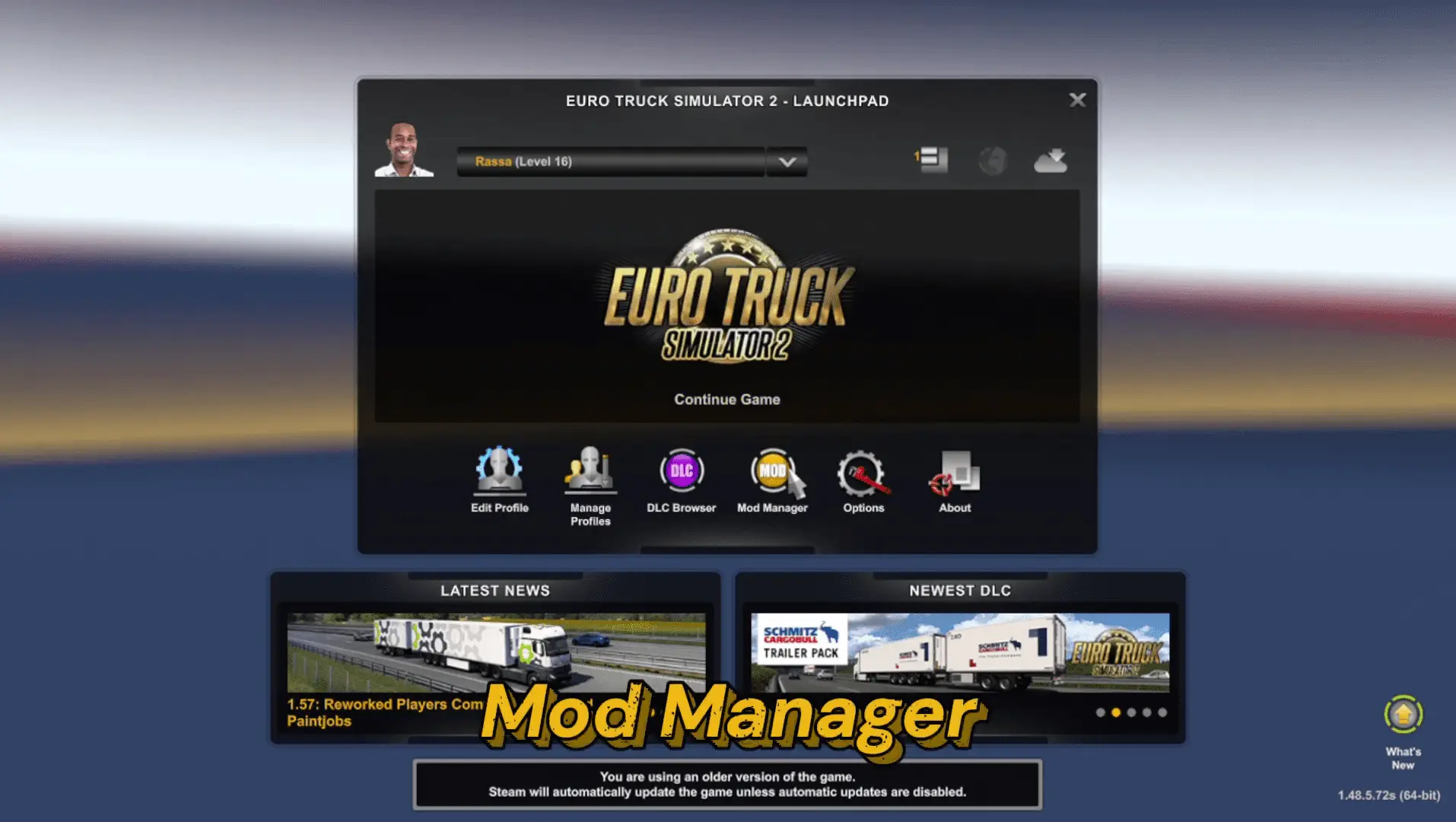
Once activated, the mod is fully enabled and ready to use.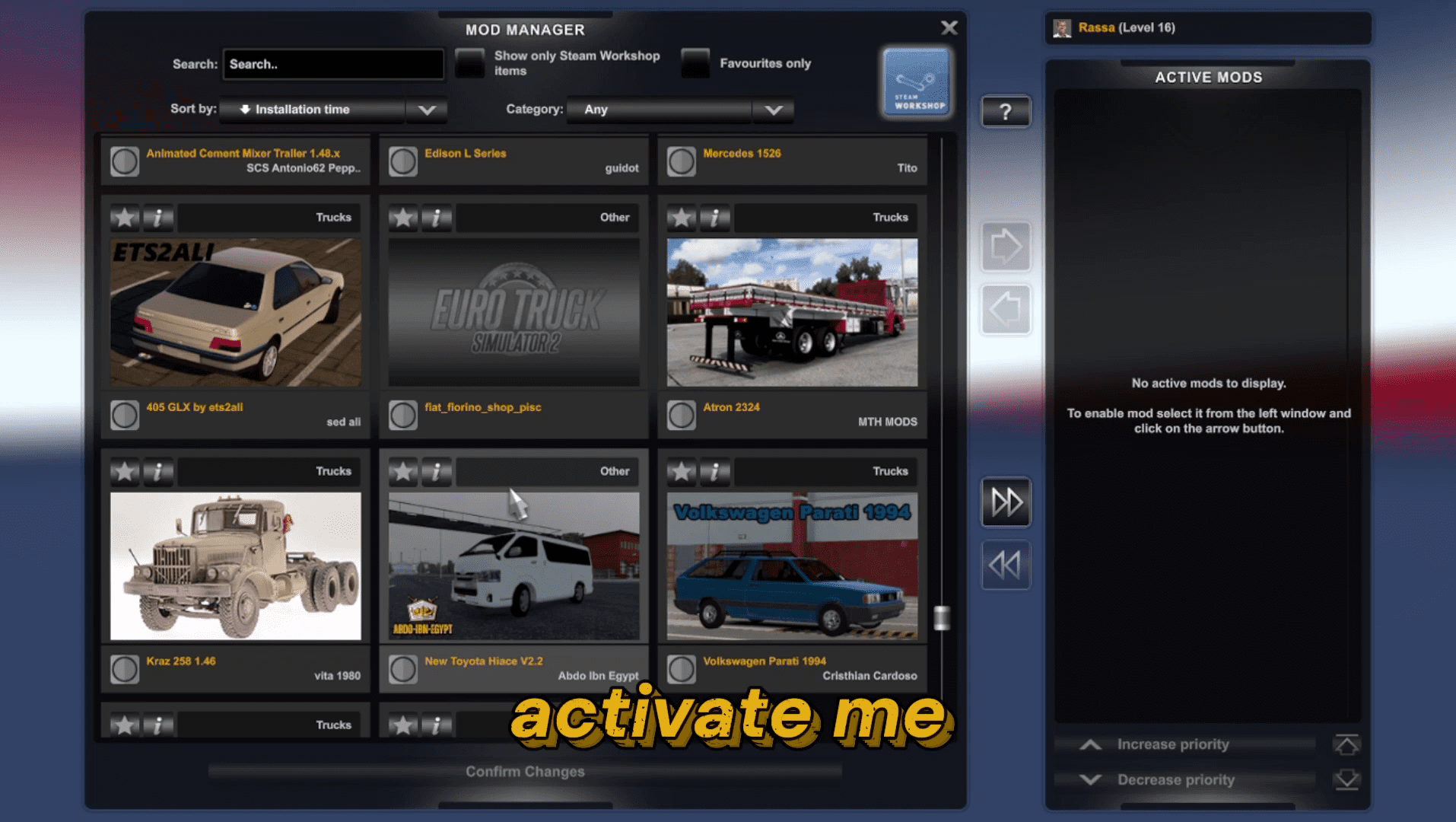
Step 7: Access Modded Vehicles and Features
After loading your profile, you can access your new content.
For vehicle mods, visit Truck Dealers and open the Mod Dealer section. Purchase your modded vehicle and begin driving.
For other mods, start a job or explore the map to experience the changes.
Common ETS2 Modding Mistakes to Avoid
Many ETS2 modding issues come from simple mistakes.
Common problems include game crashes, mods not appearing in Mod Manager, or invisible vehicles. These issues usually happen because of version mismatches or too many active mods.
To avoid problems, activate mods one at a time and remove outdated mods after game updates.
Is It Safe to Install ETS2 Mods?
Yes, installing ETS2 mods is safe when done responsibly.
Always download mods from trusted sources, avoid executable files, and keep backup copies of your profiles. Responsible modding ensures long-term stability and protects your progress.
I have made this video on youtube and you can watch it for more information. Download the mods here.
Final Thoughts
Learning how to download and install ETS2 mods safely gives you full control over your Euro Truck Simulator 2 experience. Mods allow you to drive new vehicles, explore new maps, and customize gameplay without risk when installed correctly.
Follow this guide carefully, always match mods to your game version, and keep your mod folder organized. As a result, you will enjoy a smooth, stable, and fully customized ETS2 experience.